Routes
A Route represents a path on the map that consists of multiple waypoints connected by route legs.
Routes can be created manually or imported from supported route files (RTZ/RT3). Once a route is created or selected, an edit dialog appears at the bottom of the map.
In the edit dialog, you can change the route name, delete the route, and view additional information such as the total distance, creation time, and last update time.
Disclaimer
Routes and waypoints created in IcySea are not checked or validated for marine navigational safety. You remain fully responsible for creating, reviewing, and using them. They may cross land, shallow water, restricted areas, or other unsafe locations.
Always verify your route and all navigation decisions using official, up-to-date nautical charts, approved navigation equipment, and proper seamanship. Safe navigation remains solely your responsibility.
Create or import a route
Create a route in the map data list
Click the Create new map data button at the top of the User Map Data list and select Route. Then click on the map to place the route waypoints.
Create a route using the right-click / long-press context menu on the map
Right-click on the map and choose the option to create a route. Then continue placing waypoints on the map.
Import a route
Routes can be imported from supported route files in RTZ and RT3 format. Click the Import file button at the top of the User Map Data list and select a file from your computer. Alternatively, you can simply drag'n'drop a file onto the map from somewhere else on your computer (e.g. file explorer).
Edit a route
You can select a route by clicking it on the map or choosing it from the User Map Data list.
Selecting a route opens the edit dialog at the bottom of the map. From there, you can open the Edit waypoints dialog, which appears on the right side of the map and allows you to manage each waypoint individually.
Edit waypoint details
For each waypoint, you can:
- Set an individual label
- Edit the coordinate values
- Delete the waypoint
- Choose the leg type, such as Rhumb line or Great circle
Move waypoints on the map
You can change a waypoint position by dragging it directly on the map. You can also update its position by editing the coordinate values in the Edit waypoints dialog.
Route leg information
Information about each leg is shown between the waypoints in the Edit waypoints dialog.
Distances for individual legs are also displayed next to the route on the map when the route is selected. You may need to zoom in to see them.
Distances are shown in the unit configured in your settings (nautical miles or kilometers).
Insert waypoints
You can add new waypoints to an existing route in several ways.
Insert by hovering over the route
Hover over a selected route. A plus marker appears on the route. Click the marker to insert a new waypoint at that position.
Insert from the waypoint context menu
Right-click a waypoint of a selected route and choose Insert before or Insert after. This inserts a new waypoint into the selected segment.
Insert by splitting a segment
In the Edit waypoints dialog, use the Split button to split a segment in half. This adds a new waypoint in the middle of the segment.
Delete waypoints
You can delete waypoints in two ways:
- Use the delete button in the Edit waypoints dialog
- Right-click a waypoint of a selected route and choose the delete option
Hide a route
You can hide a route on the map using the Hide button or the button with the eye icon in the User Map Data list. Please note that you can only unhide a route from the User Map Data list.
Delete a route
You can delete the entire route using the delete button in the route edit dialog or from the User Map Data list.
Further information
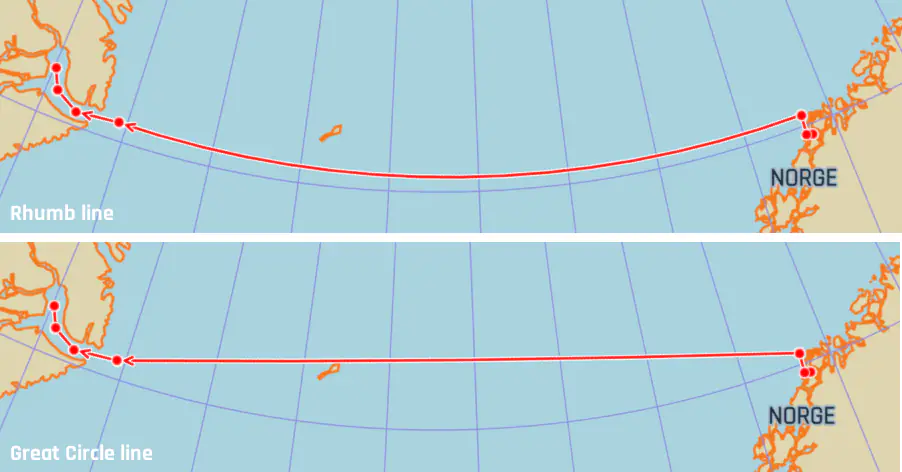
Rhumb line and Great circle
When defining a route leg, you can choose between Rhumb line and Great circle. These affect how the path is drawn between two waypoints. The default type is Rhumb line, as routes are intended for navigational use.
Rhumb line
A Rhumb line follows a constant direction (bearing).
Unlike the more common Mercator projection, Rhumb lines typically appear curved on IcySea's Polar Stereographic map, especially over longer distances.
Great circle
A Great circle represents the shortest path between two points on Earth.
On the Polar Stereographic map, Great circle legs usually appear straight or nearly straight, particularly in polar regions.