Points of Interests (POI)
A Point of Interest (POI) represents a single location on the map, such as a place, marker, or note.
POIs are displayed as markers on the map. You can create them manually, adjust their position, and manage their properties.
Create a POI
Using the map data list
Click the Create new map data button at the top of the User Map Data list and select POI from the dropdown menu. Then click on the map to place the point.
Using the right-click / long-press context menu
Right-click on the desired location on the map and choose the option to create a POI. The point will be placed at the selected position.
Edit a POI
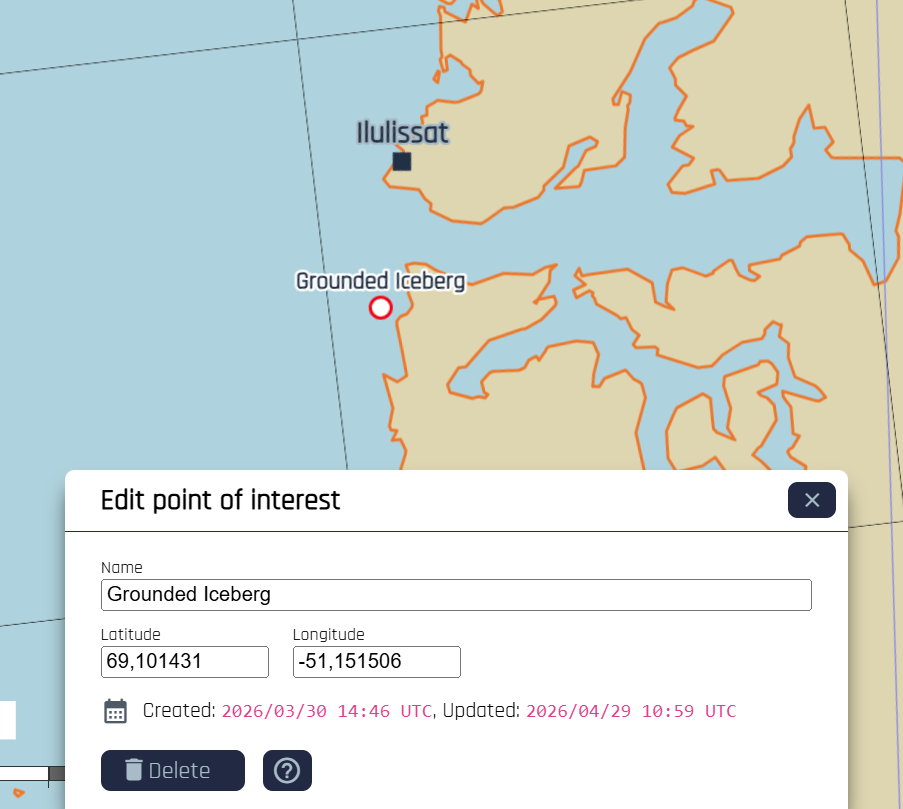
When a POI is created or selected, an edit dialog appears at the bottom of the map.
Change position
You can update the position of a POI in two ways:
- Edit the coordinate fields in the edit dialog
- Drag the POI directly on the map
Rename
Use the edit dialog to update the name of the POI displayed next to it on the map.
Hide a POI
You can hide a POI on the map using the Hide button or the button with the eye icon in the User Map Data list. Please note that you can only unhide a POI from the User Map Data list.
Delete a POI
You can delete a POI in two ways:
- Use the delete button in the edit dialog
- Use the delete option in the User Map Data list