List
The User Map Data list is the central place to view and manage all data you add to the map.
The list contains all features you have created or imported, including Points of Interest (POIs) and Routes.
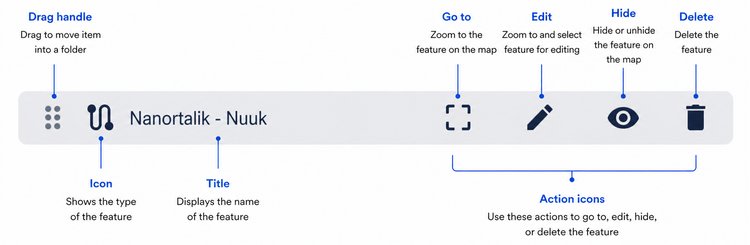
Each entry represents one feature and provides quick access to available actions.
Create and import data
Use the buttons at the top of the list to add new data or import existing files:

Import files
Opens a file selection dialog where you can choose files to import from your device. You can also drag and drop files directly onto the map.
Create new map data
Select a map data type (routes, points of interest) from the dropdown menu. The list will close, and you can start drawing the feature on the map by clicking its first position on the map.
Create new folder
Add a new folder to the top of the list to help organize your map data.
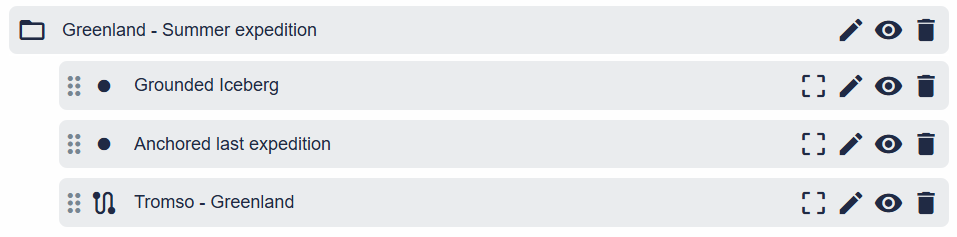
Organize with folders
You can organize your map data using folders. This is useful for grouping related items, such as features for a specific tour.
To add features to a folder, drag them into it.
Use the “eye” button to show or hide all features in a folder on the map. You can also delete a folder, which will remove all its contents.