User location
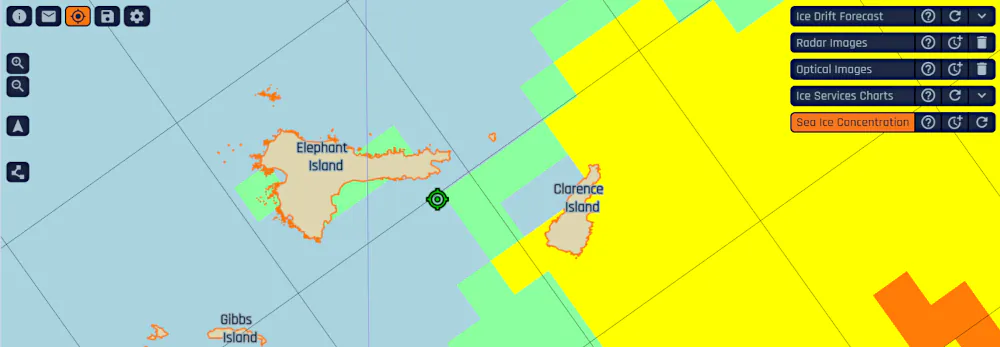
IcySea can show your current location on the map. Availability depends on your device and surroundings. This page explains how to show your location using the 'User position' feature and troubleshoot common problems.
Set up your device
How you set up your location depends on the device you use. On a phone or tablet, you may be able to use the built-in location service. On a computer, you can connect an external USB receiver or use your ship's GNSS connection. The following sections explain how to set up each option.
Use your device's built-in location service
If your device has a built-in location service like a mobile phone, you can directly use it without setting up an external receiver.
Use an external USB GNSS receiver
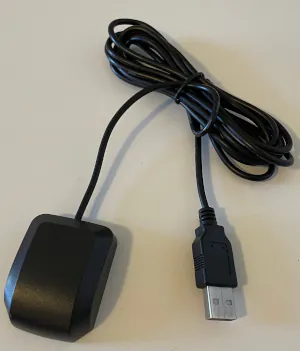
An external GNSS (Global Navigation Satellite System) receiver connects to your computer via USB. Compatibility depends on your receiver, operating system, and browser.
Connect the receiver, then click or tap 'User position' in the top-left corner of IcySea. When prompted, select the serial port for your receiver. IcySea will connect to the receiver and display your location.
Connect to your ship's GNSS receiver
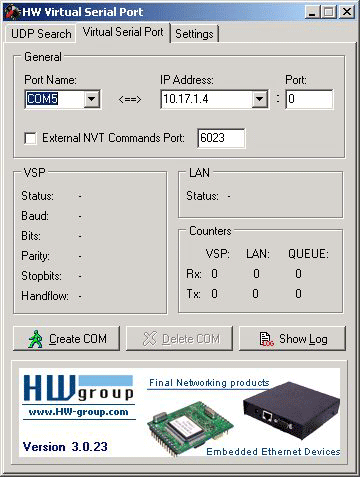
- On the Windows computer you use for IcySea, install HW VSP3. You will need administrator rights. This software creates a virtual serial port.
- In HW VSP3, enter the IP address of the server that provides your ship's GNSS position. Select the corresponding COM port, as shown in the screenshot.
- In IcySea, open 'Settings' using the gear icon in the top-left corner. Go to 'User position' and select 'Connect to GNSS sensor via serial port'. Select the baud rate required for your connection. If you are unsure which rate to use, ask the person who manages your ship's GNSS connection.
- Close 'Settings', then click or tap 'User position' in the top-left corner of IcySea. IcySea will connect and centre the map on your current location.
Usage
Click or tap 'User position' in the top-left corner of IcySea.
When prompted, allow IcySea to access your location. The available permission options depend on your browser and device.
The map centres on your location, zooms in, and rotates so that north is at the top.
Your location is updated while the 'User position' button is active. You can work as usual with the app in this mode. Keep in mind that the map view is not locked to the location marker. That's why the location marker may move out of the map view when the ship is moving.
If IcySea cannot interpret the GNSS position it receives, it turns off location updates. You can try to turn it on again by using the 'User position' button.
Common problems
My location takes a long time to appear
Receiving a GNSS signal can be difficult inside a ship. Try moving closer to a window or going outside, then wait a few minutes.
The 'Connect to GNSS sensor via serial port' option is missing
Your browser may not support serial port connections. To use an external receiver, you need a browser like Chrome that supports this feature. I.e., as of 2026, you cannot use serial ports on Safari.
Error message: 'The received position is outside of the supported area.'
This message means that the reported location is outside the polar regions covered by IcySea. On devices connected to satellite internet, the location might be wrong, reflecting the location of your internet provider, rather than your actual location. Try using a GNSS receiver to obtain your location.
Error message: 'Failed to open serial port'
This can indicate that user permissions are insufficient for accessing the selected device.
On a Linux operating system, please consider using the "id" command
to check if your user is part of the "dialout" group. If this is
not the case, add your user to the group using
sudo usermod -a -G dialout <username>.
Restart your computer to apply the change, then try again.
When using a Chromium-based browser, visiting
"device-log" can help to nail down the problem, as this site
gives a list of errors that happened recently.
Paste chrome://device-log into the address bar of your browser.
I'm using an iPad, but it's not showing my location.
Here are some points that may help:
- Make sure your iPad has a GPS sensor. There are models that don't have one.
- Grant permissions for Safari/Chrome.
Check settings under Settings -> Privacy & Security -> Location Services. - Restart your iPad
- Update iOS version if an update is available.
- Check whether other websites (like maps.google.com) can access your location.
If you still need help, contact support@driftnoise.com.